
Lock Screen & Notifications iOS 15: Easier to View & Manage Multiple Notifications at Once
Open from the Lock screen & Notifications iOS 15
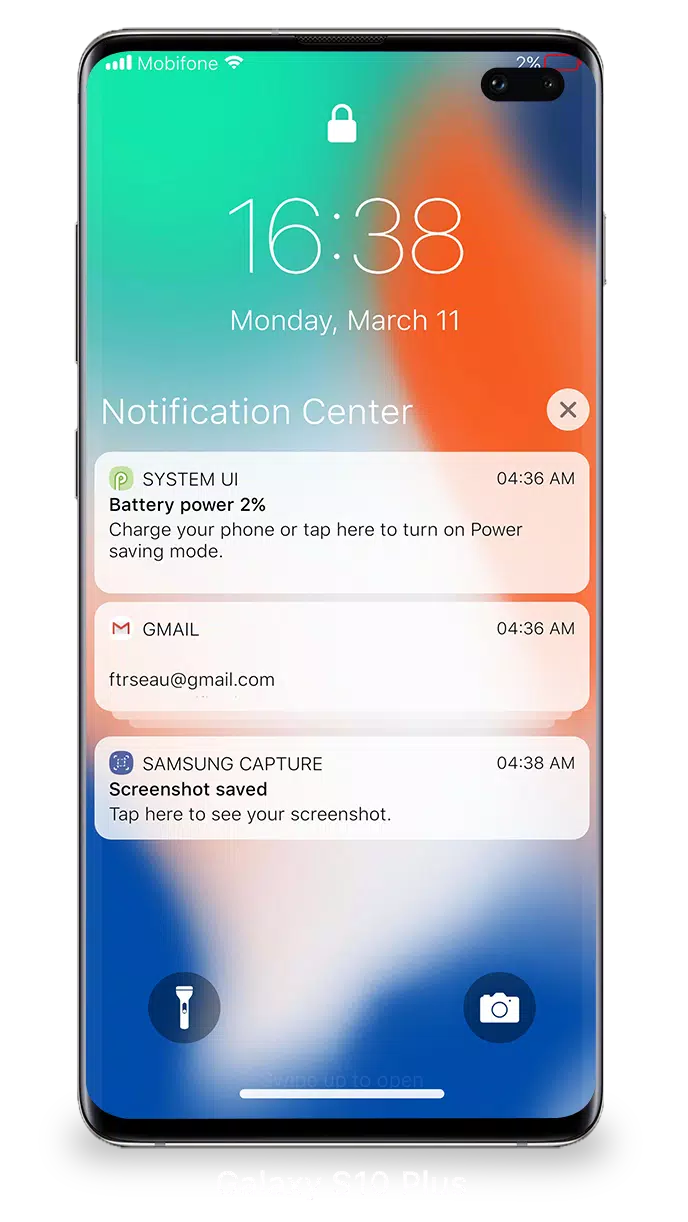
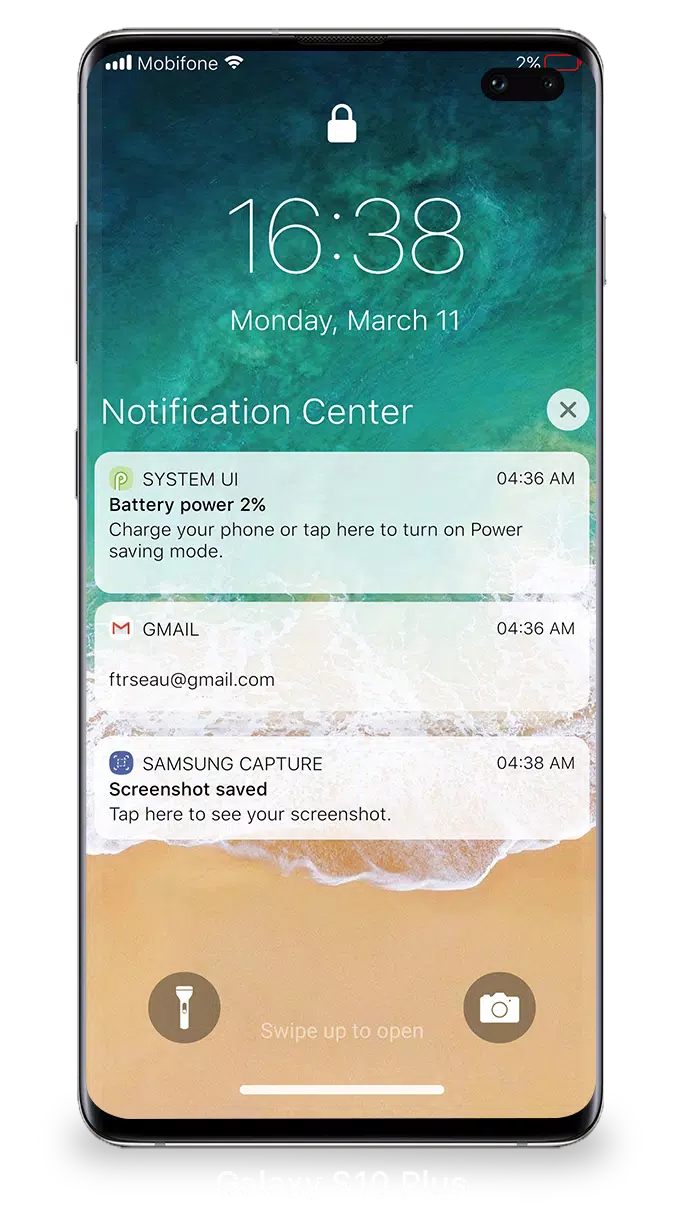
You can quickly view your recent notifications directly from the Lock screen by turning on your phone.
You can also perform these actions using the Lock Screen & Notifications iOS 15:
- Tap a single notification or a group of notifications to view all alerts for that specific app.
- Swipe left over notifications to manage, preview, or clear them.
- Manage alerts for specific apps.
Learn how to set, use, and change a passcode on your device.
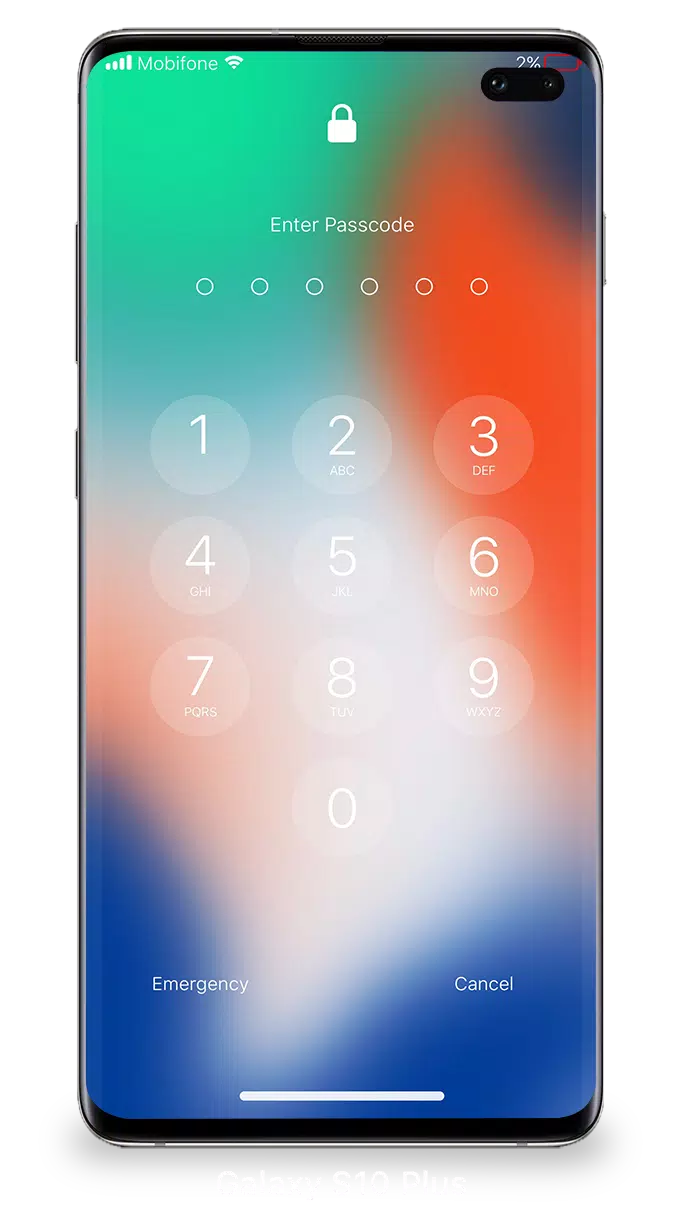
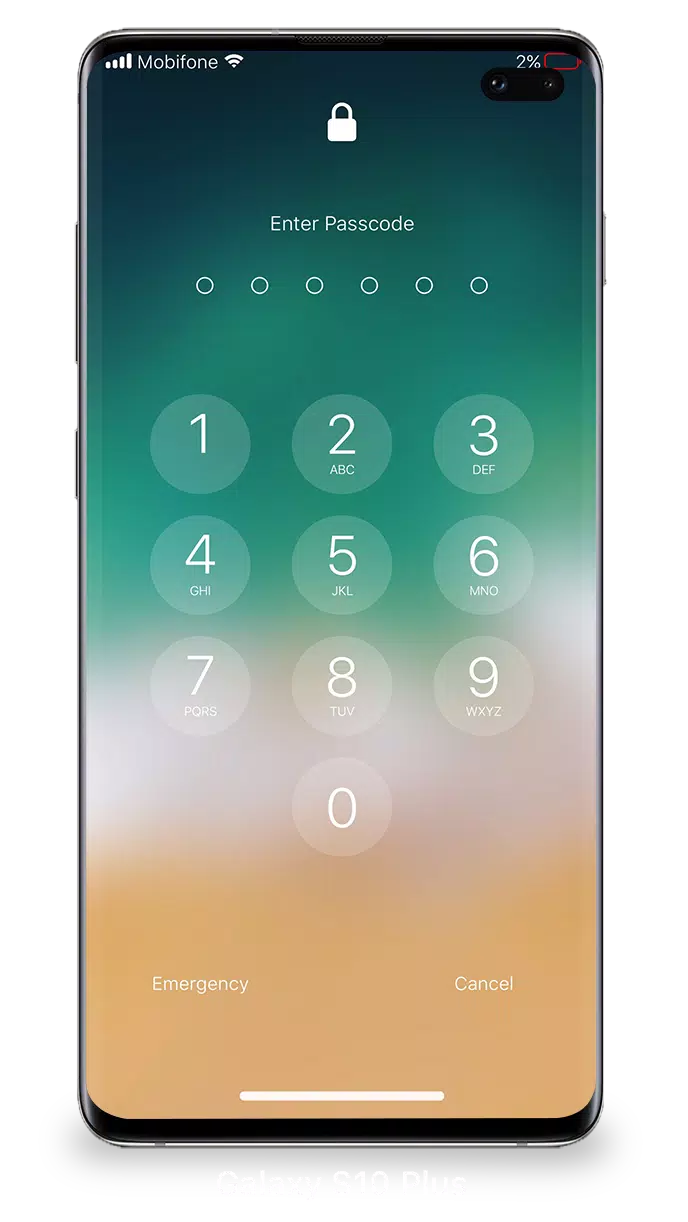
Set a passcode on your phone to help protect your data.
Set up a passcode
- On your phone, open the Lock Screen & Notification app.
- Tap the Passcode option.
- Enable Passcode and enter a six-digit code.
- Enter your passcode again to confirm it and activate it.
To make Lock Screen & Notifications iOS 15 work perfectly, you must grant some special permissions:
- CAMERA: To open the camera on your phone.
- READ_PHONE_STATE: To turn off the lockscreen while receiving a call.
- NOTIFICATION ACCESS: To retrieve notifications on your phone.
- READ/WRITE_EXTERNAL_STORAGE: To download more wallpapers.
- DRAW_OVER_SCREEN: To display Lock Screen & Notifications over all apps.
How to use Lock Screen & Notifications iOS 15: Watch Tutorial